
Introduction
Welcome to Week 9 of 2026!
This week, we’re going to explore using a form to bulk update multiple rows of an input table. As a bonus, we will also play with custom sorting controls.
Good luck!
-Ashley
Need access to Sigma?
Note: You will only have view access to WOW Workbooks, Folders, and Workspaces, not edit access. Please create your WOW Workbooks under “My Documents.” We suggest creating a folder to organize all your workbooks.
Requirements
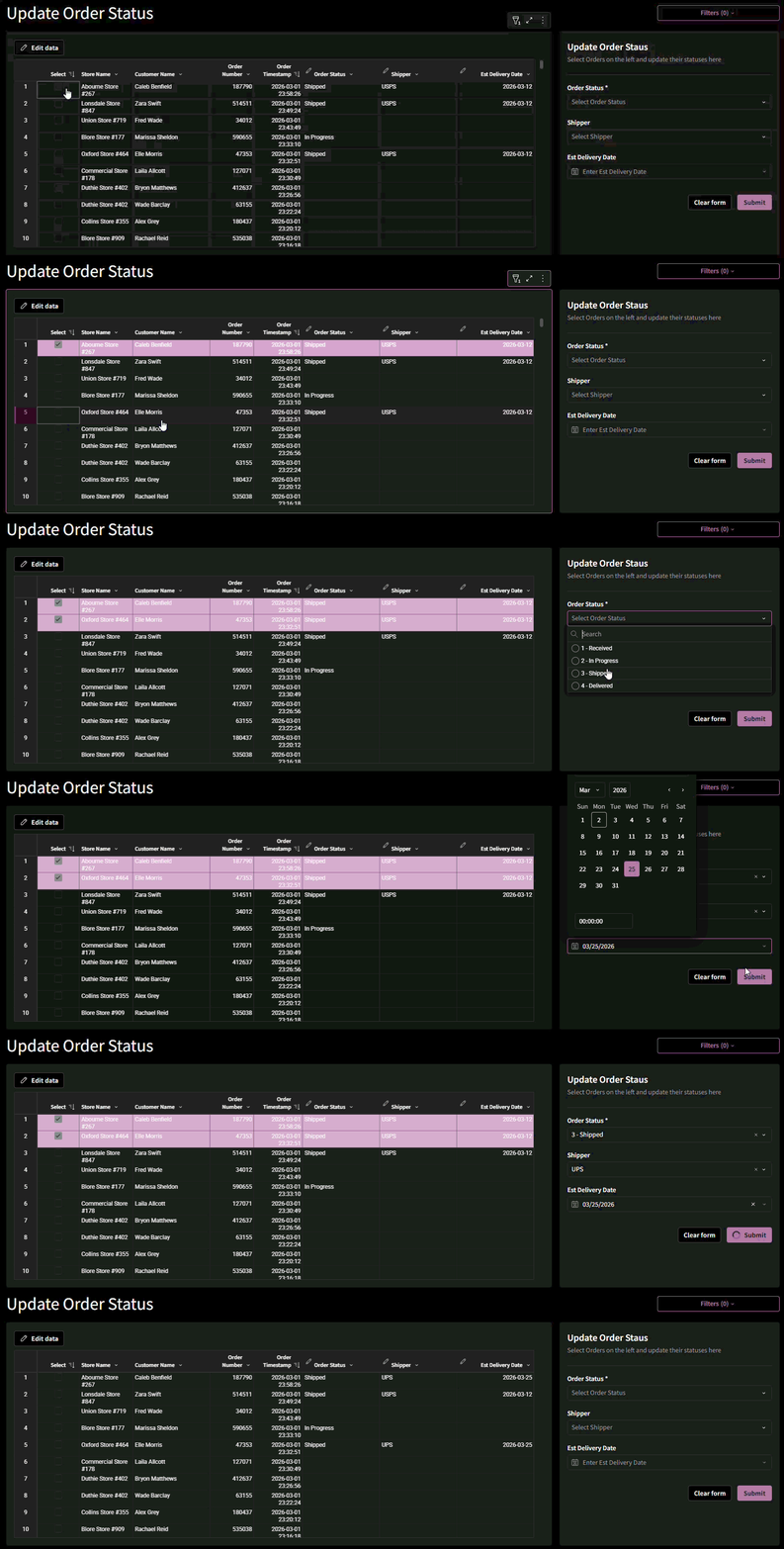
The goal of this challenge is to create a workbook that allows warehouse employees to update the shipping status of orders.
Hidden Data Sheet
On this sheet, all we need is a table containing our base data: RETAIL/PLUGS_ELECTRONICS/PLUGS_ELECTRONICS_HANDS_ON_LAB_DATA
In this base data table, we will need to do some transformations:
- Add a concatenated [Key] column at the same grain as the linked input table (Order Number, Store Key, and Customer Key)
- Add a Ragged Hierarchy Product column that will be used as a filter
Add 2 dimensional input tables:
- Order Status Dim: This should contain 3 columns, with information that fit your vision:
- Status
- Sort Key (numeric)
- Sorted Status that concatenates the Sort Key first, then the Status
- Shipper Info: This should just be a list of possible shippers to be used as Data Validation.
Finally, create a hidden list control where our workflow can track selected Keys.
Visible Page:
Your visible page should contain:
- A Linked Input Table Containing all orders.
- The primary key should be your new [Key] column
- Include information about the order, like Store, Customer, Order Number and Date
- Include a calculated column [Select] that displays a checked box if the row’s [Key] is contained in the hidden control. Be sure to handle an empty control.
- Add 3 input columns with appropriate data validation:
- Order Status
- Shipper
- Est. Delivery Date
- Add actions on click of the [Select] column that Adds or Removes the record’s [Key] to the hidden control, depending on if the [Key] is already contained in the control’s array
- A Form that updates the Linked Input Table
- Order Status should be Required
- Buttons should:
- Submit: Updating rows, clearing the form, and de-selecting orders from our table) or
- Clear Form: Clearing just the form
- A Popover with appropriate filters, including:
- Order Status, sorted by its sort key
- Store Name, sorted by the Store Key
- Product Hierarchy
- Customer
Finishing Touches
- Give your visible page a descriptive title
- Arrange your elements into a cohesive dashboard
- Update your workbook’s settings to give it a more personalized flair
Food for thought
- Why might we choose to use actions instead of a Checkbox input column?
- I prefer to use actions, so the end user never has to click “Edit Data”. With actions, we could even go one step further and only expose a child table of our Linked Input table. This allows us to hide the Linked Input Table from the end user, and allows us greater control over who can update the data.
Tips
- Be sure to handle null or empty control values in [Select]’s calculation. The conditions on the actions used to add or remove the [Key] to the control are easier if the values are always True or False, not null.
- Add some conditional formatting and sorting so that Selected rows are easier for the user to find
Dataset
RETAIL/PLUGS_ELECTRONICS/PLUGS_ELECTRONICS_HANDS_ON_LAB_DATA
Share
After you finish your workout, share on LinkedIn, Sigma’s Community page, (or Twitter) using the hashtags #WOW2026 and #Sigma, and tag Ashley Bennett, Eric Heidbreder, Jessica Batten, and Carter Voekel!
Create an interactive, sharable version of your solution here.
Also, make sure to fill out the Submission Tracker so that we can count you as a participant this week to track our participation throughout the year.
Solution
Coming soon….