
Introduction
This week, we are picking up the momentum from the map challenge last week, by taking a deep dive into Dynamic Zone Visibility.
This project will provide you an understanding of developing dynamic zones in Sigma for the ultimate user experience you want to bring to your audience. Examples include: Drill down, Chart Swap, and Custom Sorting.
By the end of this challenge, you will be able to create your own dynamic zones that work the best with your business context.
Good luck!
Stanley
Need access to Sigma?
Click Here to Sign Up
Link to WOW Sigma Instance
Youtube
Click here to Watch: How to Register & Get Started with Sigma WoW
Note: You will only have view access to WOW Workbooks, Folders, and Workspaces, not edit access. Please create your WOW Workbooks under “My Documents.” We suggest creating a folder to organize all your workbooks.
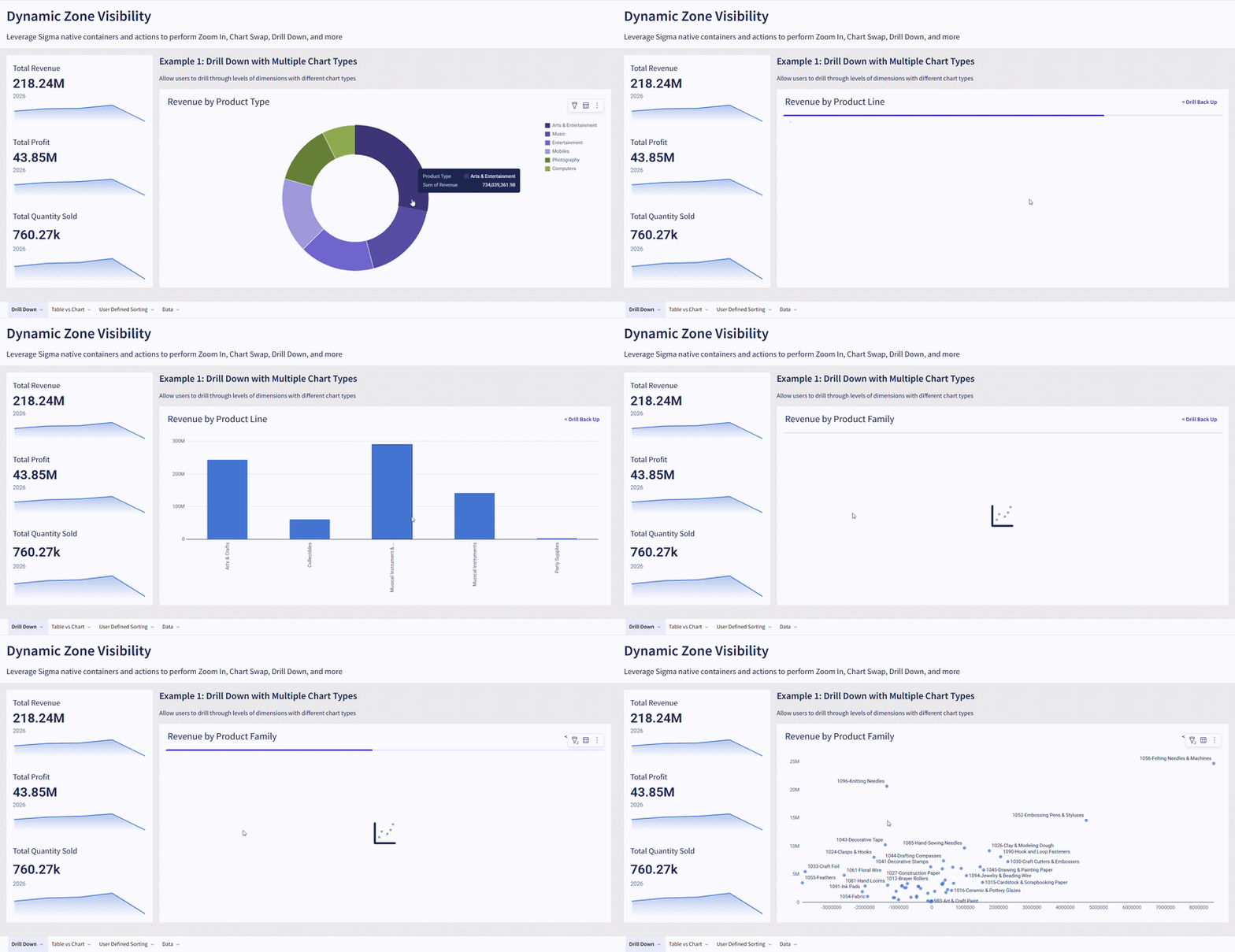
Click to Open an Interactive Workbook
Requirements
- Data
- Connect to Sigma Sample Data Source: Plug Electronics Hands On Lab Data
- Drill Down Example:
- Create a Tabbed Container with 3 tabs and hide the Tab header in format settings
- Create 3 charts based off Plug Electronics Data. (Recommending by Product Type, Product Line, then individual Product Name, aggregating revenue)
- Set up 2 list controls. If you followed the recommendations above, set Product Type control to apply on both the second and the third chart, and Product Line control to apply on the third chart only
- Disable the default chart title for all charts and use a text element at the top of Tabbed container instead
- Create button to Drill Back Up on Tab 2 and 3, configured a Set Container Tab action to go to the previous tab
- Configure actions on chart 1 and 2 to set control values ( the two we created previously) by approporate columns and then Set Container Tab to navigate to the next tab
- Chart Swap Example
- Create two charts based off Plug Electronics data, ideally different chart types using the same dimensions and metrics.
- Create a Tabbed Container with 2 tabs and hide the Tab header in format settings
- Create a Segmented Control and provide two values based on your chart types
- Create a Synced Copy of your Segmented Control and move it to the same location on the second Tab.
- Create Set Container Tab action with Condition (control value) to navigate between 2 tabs.
- Custom Sort Example
- Create 4 tables with the same dimensions and metrics, ideally we will need to create 4 column calculations beforehand. In the example, I used Order Count, Total Revenue, Total Profit, and COGS.
- For each table, edit conditional formatting for one metric column only and enable data bars as well as sorting logic on the same column
- Create a Tabbed Container with 4 tabs, hide the Tab header in format settings
- Create List value control with names of the 4 columns as control values
- Configure Set Container Tab actions for the list value control to navigate to each tab based on condition by control value
Dataset
- Sigma Sample Database / Retail / Plug Electronics Hands On Lab Data
Share
After you finish your workout, share on LinkedIn, Sigma’s Community page, (or Twitter) using the hashtags #WOW2026 and #Sigma, and tag Ashley Bennett, Eric Heidbreder, Jessica Batten, Carter Voekel and Stanley Gai!
Create an interactive, sharable version of your solution here.
Also, make sure to fill out the Submission Tracker so that we can count you as a participant this week to track our participation throughout the year.