
Introduction
We’ve had modals for awhile, but Sigma has introduced a similar concept with its new Drawers feature. I think they look great, and work really well for storing form data. This is a beta feature, so if you have feedback, please share and help shape the feature!
Need access to Sigma?
Note: You will only have view access to WOW Workbooks, Folders, and Workspaces, not edit access. Please create your WOW Workbooks under “My Documents.” We suggest creating a folder to organize all your workbooks.
Requirements
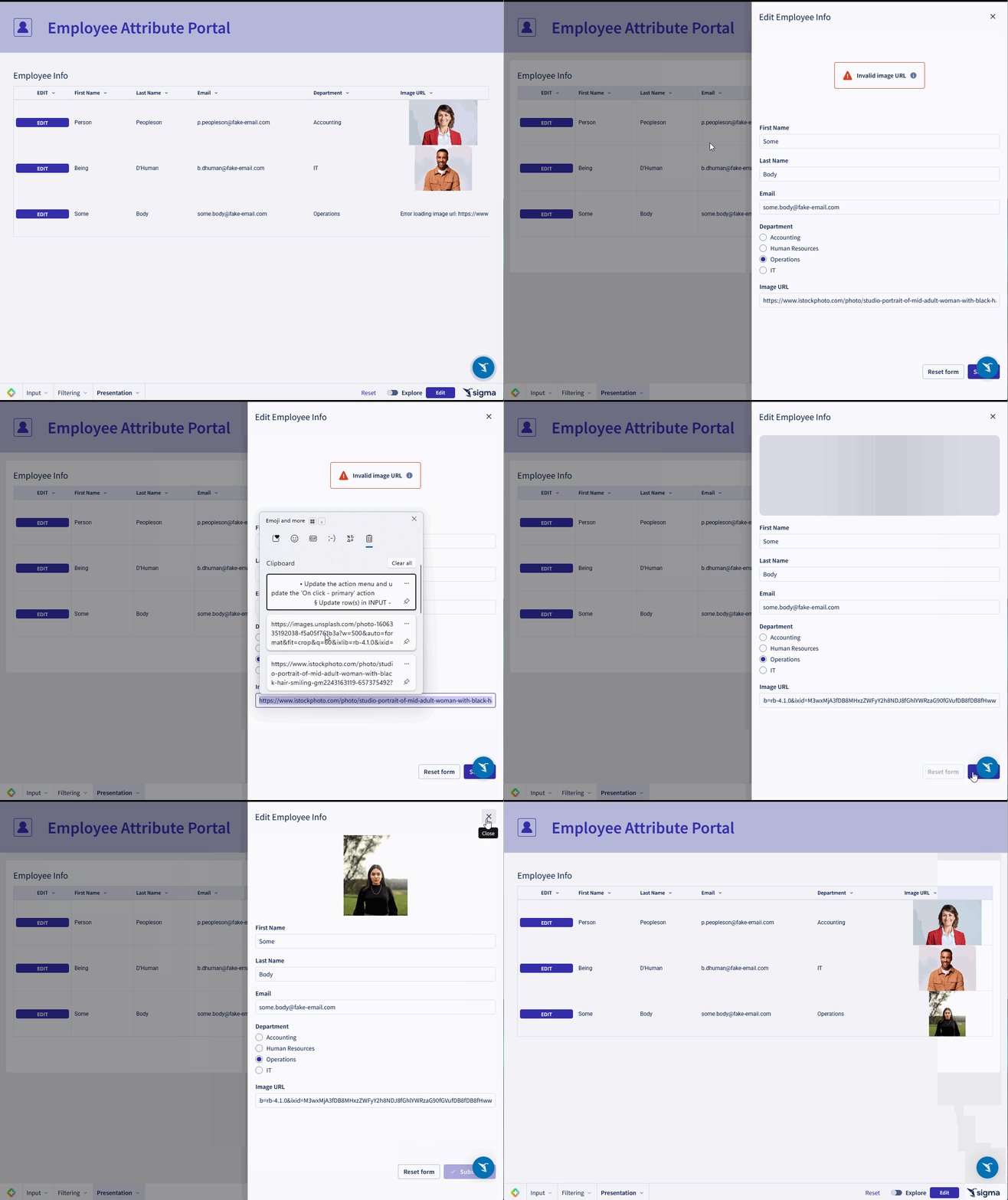
- Create a new input table called INPUT – Employee Info, and add 6 columns:
- First Name
- Last Name
- Department (use data validation to limit the responses to a few departments: Accounting, HR, Operations, IT)
- Image URL
- Employee ID (Add a new column, then under System Columns, select Row ID)
- Create your drawer
- Down in the pages bar at the bottom of the screen, click the dropdown next to the + symbol and select ‘Add drawer’
- Name the drawer Edit Employee Info
- Create your form
- On the INPUT – Employee Info, select the ‘Create Child Element’ option in the top right
- Select ‘Form’
- Move the form to the Edit Employee Info drawer
- Create a new page called Filtering
- Create a new page called Presentation
- Create a child table from the INPUT – Employee Info table, call it FILTERABLE – Employee Info. Move it to the Filtering page
- Add a control on Employee ID that only targets this table. IMPORTANT – deselect ‘Allow multiple selection’ on this control!
- Create another child table from the INPUT – Employee Info table, call it Employee Info and move it into the Presentation tab
- Update the formatting as you like
- Add a calculated column called Edit
- Set its formula to display the word ‘EDIT’
- Update the text color to light blue, so it looks clickable
- Add a few actions to the Edit column
- On Select, Set Form Values on your Edit Employee Info form, set them to the Column values in the table
- Set ‘Employee ID’ control to the value of the selected row
- Open Edit Employee Info Drawer
- Note that when you apply actions, the option can be formatted under the ‘Action Button’ dropdown
- Go back to your form for final edits!
- Update the action menu and update the ‘On click – primary’ action
- Update row(s) in INPUT – Employee Info
- Update all the rows using the ‘Employee ID Control (if Control doesn’t show up as an option, revisit step 6, you may need to deselect ‘Allow Multiple Selection’
- Add all columns, and make sure it’s updating with the form field values
- Update row(s) in INPUT – Employee Info
- Update the action menu and update the ‘On click – primary’ action
- Final cleanup
- Change the INPUT – Employee Info table to be editable by Viewers
- Hide all pages except Presentation
Dataset
None, these are generated manually.
Share
After you finish your workout, share on LinkedIn, Sigma’s Community page, (or Twitter) using the hashtags #WOW2026 and #SigmaComputing, and tag Ashley Bennett, Eric Heidbreder, Stanley Gai, and Carter Voekel!
Create an interactive, sharable version of your solution here.
Also, make sure to fill out the Submission Tracker so that we can count you as a participant this week to track our participation throughout the year.
Solution
Coming Soon!