
Introduction
Welcome to Week 24 of 2026!
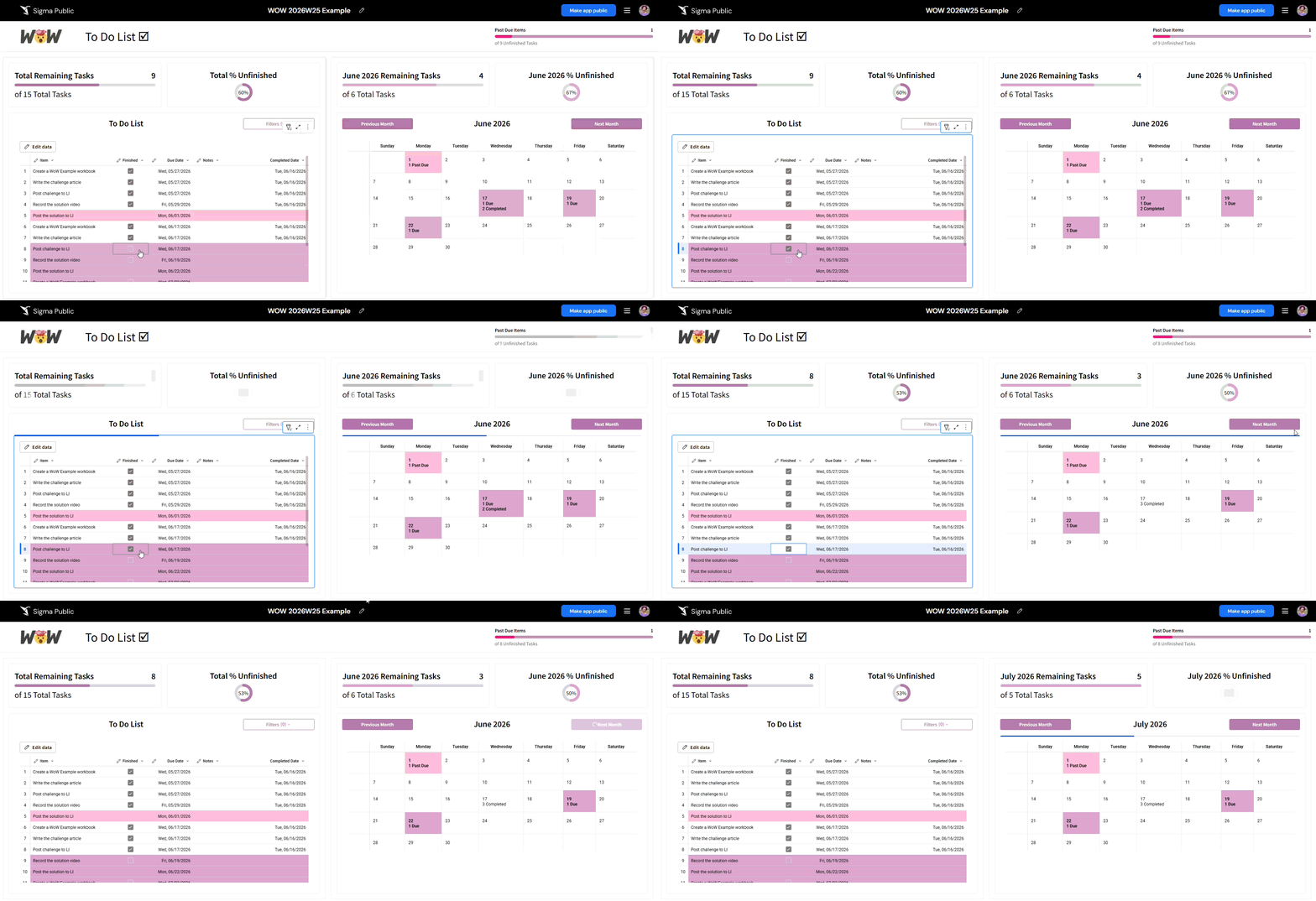
This week, we’re going to play with new UI elements in Sigma: Progress Bars and Rings. To do this, we’re going to create a To Do List where users can enter new items and easily mark as finished. We’ll then visualize progress over the entire list and for a particular month with an additional calendar view for that month.
We have moved our Workout Wednesdays to Sigma Public. Be sure to build your version there!
Good luck!
-Ashley
Need access to Sigma Public?
Requirements
The goal of this challenge is to create a To Do list that users can add to in Publish mode and create visual elements to help users track their progress through their list.
To Do List Input Table (Visible)
Create an empty input table that allows users to input these columns:
- Item (Text)
- Finished (Logical)
- Due Date (Date)
Add System Columns for:
- Row ID
- Last Updated At
- Created At
Add Summary Columns to find:
- Total Items in List
- # Finished
- # Unfinished
- % Finished
- % Unfinished
- # Past Due
Optional but helpful columns:
- Completed Date: This could be a Calculation column based the Finished column and Last Updated At or Input or a combination of both
- Finished without Nulls: New input table lines will have null instead of False in checkbox columns. This columns replaces nulls with False for easier logic in your actions.
- Due Date without Nulls: Account for Users not entering a Due Date by using the Created At date when Due Date is null
- Is Past Due: Determine if an item is not marked as Finished and is past its Due Date
- Notes: Input column for users to enter more information about the To List Item
Hidden Data Page
Date Spine
To visualize the To Do List in a calendar view, you will need to fill in missing dates with a Date Spine. I utilized Custom SQL to do so. You can use any Snowflake-style SQL you like or utilize the code that I provide under Dataset below. You could also use a CSV Upload or more manual creation in an empty input table.
If you create your own version, I recommend including:
- Dates ranging from a period in the distant past to distant future
- Columns:
- Date
- Week (as a Date), starting on your preference of Sunday or Monday
- Weekday Name
- Day of Week as Number
- Day of Month
- Month Name
- Year
To make actions and filtering easier, I created 7 summary columns here to find:
- Selected Month Start and End Dates. You want this to always return the 1st and last day of the month in the Date Range Control.
- Selected Month: The selected Month’s Name & Year as a Text column
- Previous Month Start & End: Relative to the Selected Month
- Next Month Start & End: Relative to the Selected Month
To Do List Selected Month
Create a child of the visible To Do List filtered to only include Due Dates in the Selected Date Range hidden filter.
Add Summary Columns to find:
- Total Items in List
- # Finished
- # Unfinished
- % Finished
- % Unfinished
Selected Month To Do with Spine
Create a child table of the Date Spine that joins it with To Do List Selected Month. Be sure the Date Spine is the left most table, so you can visualize dates without To Do List Items in the visible calendar. You should join Date to the Due Date column (without nulls if you created one).
Filter this table similarly to To Do List Selected Month, so only Dates in the Selected Date Range hidden filter are shown.
Selected Date Range Control
Create a Date Range control on a hidden page. This will help users traverse the visible calendar. You will need to target To Do List Selected Month and Selected Month To Do with Spine. Set the default filter to Current Month on Publish, to dynamically start with the current month without user intervention.
Visible Page
Your visible page should include:
Visible To Do List Input Table
- Include Progress Bars and/or Rings that visualize the number of Remaining Tasks in the entire list and & the % of the entire list that is Finished
- You may choose to add filters that allow users to find items more easily
- You should alert users that these filters impact the progress elements
- Add conditional formatting to help distinguish Unfinished and Past Due Items
Calendar showing the Selected Month
- A more detailed tutorial can be found in this Sigma Community article.
- Use buttons to allow users to go to the previous or next months.
- Hint: Use the appropriate Summary Columns on the Date Spine table to set the Date Range control start and end dates
- Be sure to dynamically show the Selected Month & Year
- Show the Number of Open and Closed tasks on each day, where any exist. Utilize Conditional Formatting to make these days stand out.
- Include Progress Bars and/or Rings that visualize the number of Remaining Tasks in the selected month and & the % of the selected month that is Finished
Finishing Touches
- Arrange your elements into a cohesive app, adding any extra elements you like:
- Header with a title
- You may choose to use another Progress bar showing the number of Past Due Items here to make it very visually apparent what is late
- Containers to group things together
- Header with a title
- Use a custom Workbook Theme to give your app a personal flair
- Be aware that you may want to do this before creating your calendar pivot
Tips
- Because editing in Publish mode requires users to click Edit Data to edit, I like to add Actions that allow users to check & uncheck the Finished checkbox without clicking Edit Data.
- Use similar colors for similar metrics across the app. For example, I used shades of pink to denote Past Due items, shades of purple to denote Unfinished items, and gray to denote Finished items
Dataset
-- Leverage ROW_NUMBER to ensure a gap-free sequence.
-- This is a CTE to allow "ROW_NUMBER" to be leveraged in window functions.
WITH "GAPLESS_ROW_NUMBERS" AS (
  SELECT
    ROW_NUMBER() OVER (ORDER BY seq4()) - 1 as "ROW_NUMBER"
  FROM TABLE(GENERATOR(rowcount => 366 * (2100 - 1970)) ) -- rowcount is 366 days x (2100 - 1970) years to cover leap years. A later filter can remove the spillover days
)
SELECT
    DATEADD('day', "ROW_NUMBER", DATE(0)) as "DATE" -- Dimension starts on 1970-01-01 but a different value can be entered if desired
  , EXTRACT(year FROM "DATE") as "YEAR"
  , EXTRACT(month FROM "DATE") as "MONTH"
  , EXTRACT(day FROM "DATE") as "DAY"
  , DATE_TRUNC('week', "DATE") as "WEEK"
  , DATEADD('day', -1 * DAYOFWEEK("DATE"), "DATE")::DATE AS week_start_sunday
  , DENSE_RANK() OVER (PARTITION BY "YEAR" ORDER BY week_start_sunday) as week_num_start_sunday
  , EXTRACT(dayofweek FROM "DATE") as "DAY_OF_WEEK"
  , EXTRACT(dayofyear FROM "DATE") as "DAY_OF_YEAR"
  , EXTRACT(quarter FROM "DATE") as "QUARTER"
  , MIN("DAY_OF_YEAR") OVER (PARTITION BY "YEAR", "QUARTER") as "QUARTER_START_DAY_OF_YEAR"
  , "DAY_OF_YEAR" - "QUARTER_START_DAY_OF_YEAR" + 1 as "DAY_OF_QUARTER"
  , TO_VARCHAR("DATE", 'MMMM') as "MONTH_NAME"
  , TO_VARCHAR("DATE", 'MON') as "MONTH_NAME_SHORT"
  , CASE "DAY_OF_WEEK"
     WHEN 0 THEN 'Sunday'
     WHEN 1 THEN 'Monday'
     WHEN 2 THEN 'Tuesday'
     WHEN 3 THEN 'Wednesday'
     WHEN 4 THEN 'Thursday'
     WHEN 5 THEN 'Friday'
     WHEN 6 THEN 'Saturday'
    END as "DAY_NAME"
  , TO_VARCHAR("DATE", 'DY') as "DAY_NAME_SHORT"
  , EXTRACT(yearofweekiso FROM "DATE") as "ISO_YEAR"
  , EXTRACT(weekiso FROM "DATE") as "ISO_WEEK"
  , CASE
      WHEN "ISO_WEEK" <= 13 THEN 1
      WHEN "ISO_WEEK" <= 26 THEN 2
      WHEN "ISO_WEEK" <= 39 THEN 3
      ELSE 4
    END as "ISO_QUARTER"
  , EXTRACT(dayofweekiso FROM "DATE") as "ISO_DAY_OF_WEEK"
  , MAX("DAY_OF_YEAR") OVER (PARTITION BY "YEAR") as "DAYS_IN_YEAR"
  , "DAYS_IN_YEAR" - "DAY_OF_YEAR" as "DAYS_REMAINING_IN_YEAR"
  , "MONTH_NAME" || ' ' || "YEAR"::VARCHAR as month_year
FROM "GAPLESS_ROW_NUMBERS"
WHERE "YEAR" < 2100
Share
After you finish your workout, share on LinkedIn, Sigma’s Community page, (or Twitter) using the hashtags #WOW2026 and #Sigma, and tag Ashley Bennett, Stanley Gai, Jessica Batten, Eric Heidbreder, and Carter Voekel!
Also, make sure to fill out the Submission Tracker so that we can count you as a participant this week to track our participation throughout the year.