
Introduction
Welcome to Week 36 of 2026!
This week, we’re going to create a basic ordering workflow. When you build your workflow, I encourage you to use two new functions that Sigma released last week: TextJoin and LookupMatchNulls.
We have moved our Workout Wednesdays to Sigma Public. Be sure to build your version there!
Good luck!
-Ashley
Need access to Sigma Public?
Requirements
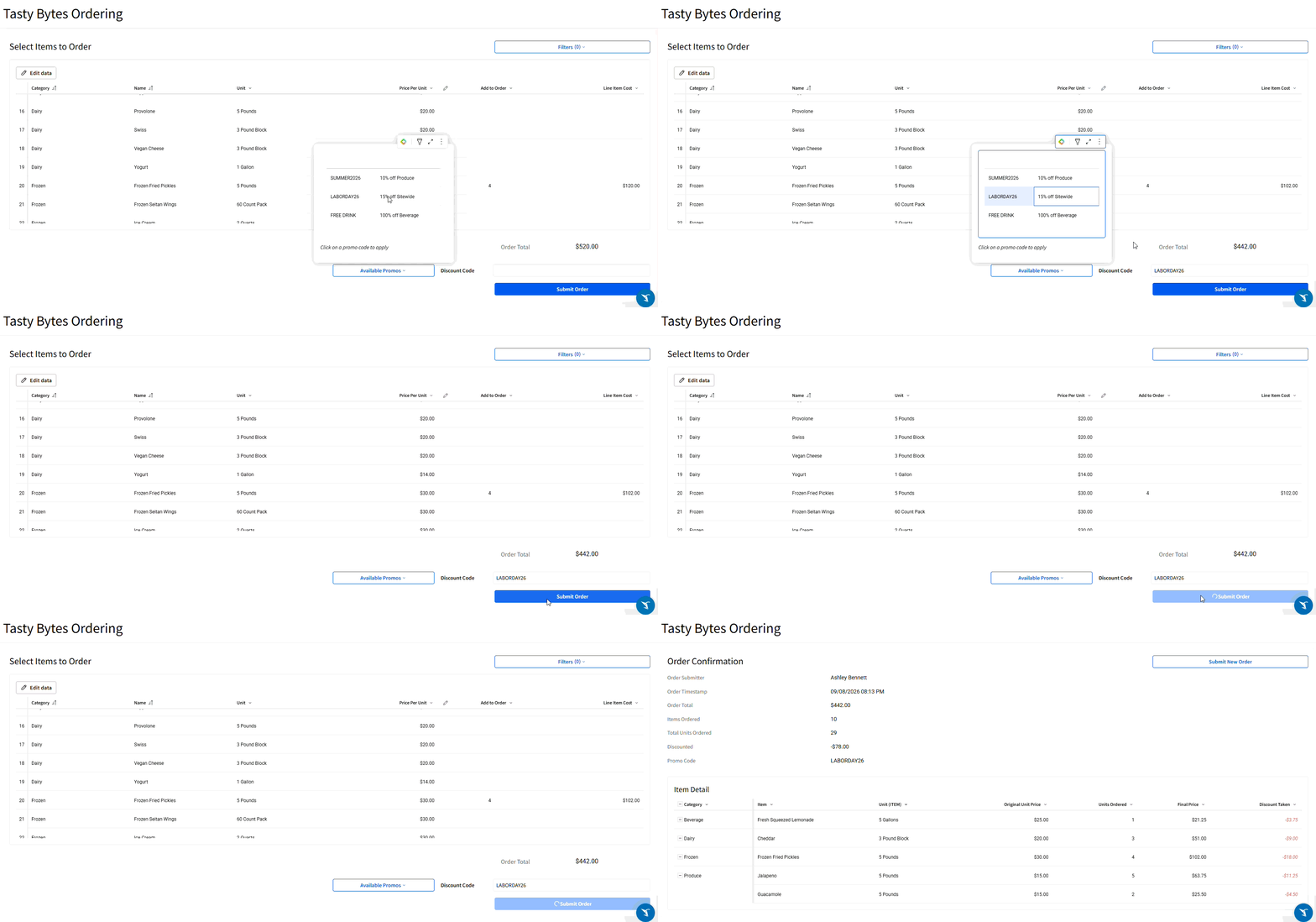
The goal of this challenge is to create an AI App that allows users to order multiple items of varying quantities and apply an available promotion. We will NOT be handling any payment processing or order editing. In your final product, I would expect to see multiple pages
Data Page
To build this app, you’ll need a few underlying tables on a hidden page.
Base Data Table
Sample Database / Retail / Tasty_Bytes_Food_Trucks / Items
This should be the parent of our List of Items to Order Linked Input Table
Promo Codes Input Table
This should be an empty input table with the following inputs:
- Category (Single-Select from the Item table)
- Promo Code (Text)
- Discount (Number formatted as a percentage)
Also include a calculated column that makes the Promotion Description.
- Note: This is an excellent place to use the new TextJoin function! Be sure to account for categories that are null. These should be considered Sitewide promos.
Finally, use a Summary Column to create an array of Sitewide Promo Codes, defined as promotions without a specified category.
Ordered Items Empty Input Table
This empty input table should have the following input columns:
- Order # (Text or Number)
- Item ID (Number): This will correlate to the Item Table
- Units Ordered (Number)
- Promo Code Used (Text)
- Discount Applied (Number)
- Order Submitter (Text)
- Final Price (Number)
Include the following columns looked up from the Item table:
- Item Name
- Unit
- Category
- Unit Price
Be sure to include System Columns:
- Created At
- Created By (this will be an email, which is why we also want the input column with a friendly name)
Use summary columns to track the latest order # and the next order #.
Order Information Table
This should be a child of our Ordered Items table grouped at the order level that aggregates order information for our Confirmation Page:
- Order #
- Submitter
- Order Timestamp (formatted how you like)
- Order Total $
- Line Items Ordered
- Total Units Ordered
- Discounted $
- Promo Code
Hidden Control
You’ll need a hidden control that filters our Item Details table on the Confirmation page.
Order Page
List of Items to Order
This should be a Linked Input Table to the Item table. Include the following columns from the dataset:
- Category
- Item Name
- Unit
- Price / Unit
Also include a Number Input column that lets users specify how many to add to the order. Be sure to only allow positive, whole numbers.
Finally, include a calculated column that shows the Line Item’s Price, less any promotional discounts. You will need to lookup the item’s discount percentage, if one is selected. If the used promo code’s category is sitewide, be sure to account for that. This is an excellent place to utilize LookupMatchNulls!
Other Order Page Elements
Be sure to also include:
- Filters that affect the Linked Input Table
- The Order’s Total Cost
- A Discount/Promo Code control
- A way to view available promotions and their descriptions
- Allow users to click to apply a specific promo
- A Submit Order button that:
- Inserts Row(s) into Ordered Items empty input table
- Sets any controls and/or single row containers for the confirmation page
- Navigates to the Confirmation Page
- Clears all filters, the Discount Code control, and user inputs in the Linked Input Table. This could be done in many steps
- Be sure the order of these steps are done in a way that makes sense for your sequence
Confirmation Page
After a user submits an order, they should be taken to a page that includes:
- Relevant Order level information like:
- Submitter
- Timestamp
- Total Price
- Items Orders
- Total Units Ordered
- Discounted $
- Promo Code Used
- A table of Item Details
- A way to navigate back to the Order page
Finishing Touches
Give your application a finished look & feel by:
- Arranging your elements in a way that makes sense
- Giving your workbook a personalized theme
- Hiding your Data page with any elements the user does not need to see or interact with
- Setting any required input tables to editable in Publish mode
Tips
- Be sure to use Data Validation and rounding to only allow users to order whole numbers of items. Always expose the rounded number to the end user and use it in functions/actions, so it is clear what they are entering, even if they enter a decimal.
Dataset
I used the Tasty Bytes Item as my base data, but feel free to use any available dataset that contains items, their cost/unit, and some sort of item categorization.
You will also need several input tables.
Share
After you finish your workout, share on LinkedIn, Sigma’s Community page, (or Twitter) using the hashtags #WOW2026 and #Sigma, and tag Ashley Bennett, Stanley Gai, Jessica Batten, Eric Heidbreder, and Carter Voekel!
Also, make sure to fill out the Submission Tracker so that we can count you as a participant this week to track our participation throughout the year.