
Introduction
Welcome to Week 29 of 2026!
This week, we’re going to create an approval process. In the past, we’ve created one using Insert Row and Update Row(s) actions. In this version, we will utilize Sigma’s new Insert Row(s) action to create an activity stream. With this new action, we can allow for tabular inputs, which many of my clients like for bulk inserts and reviews.
We have moved our Workout Wednesdays to Sigma Public. Be sure to build your version there!
Good luck!
-Ashley
Need access to Sigma Public?
Requirements
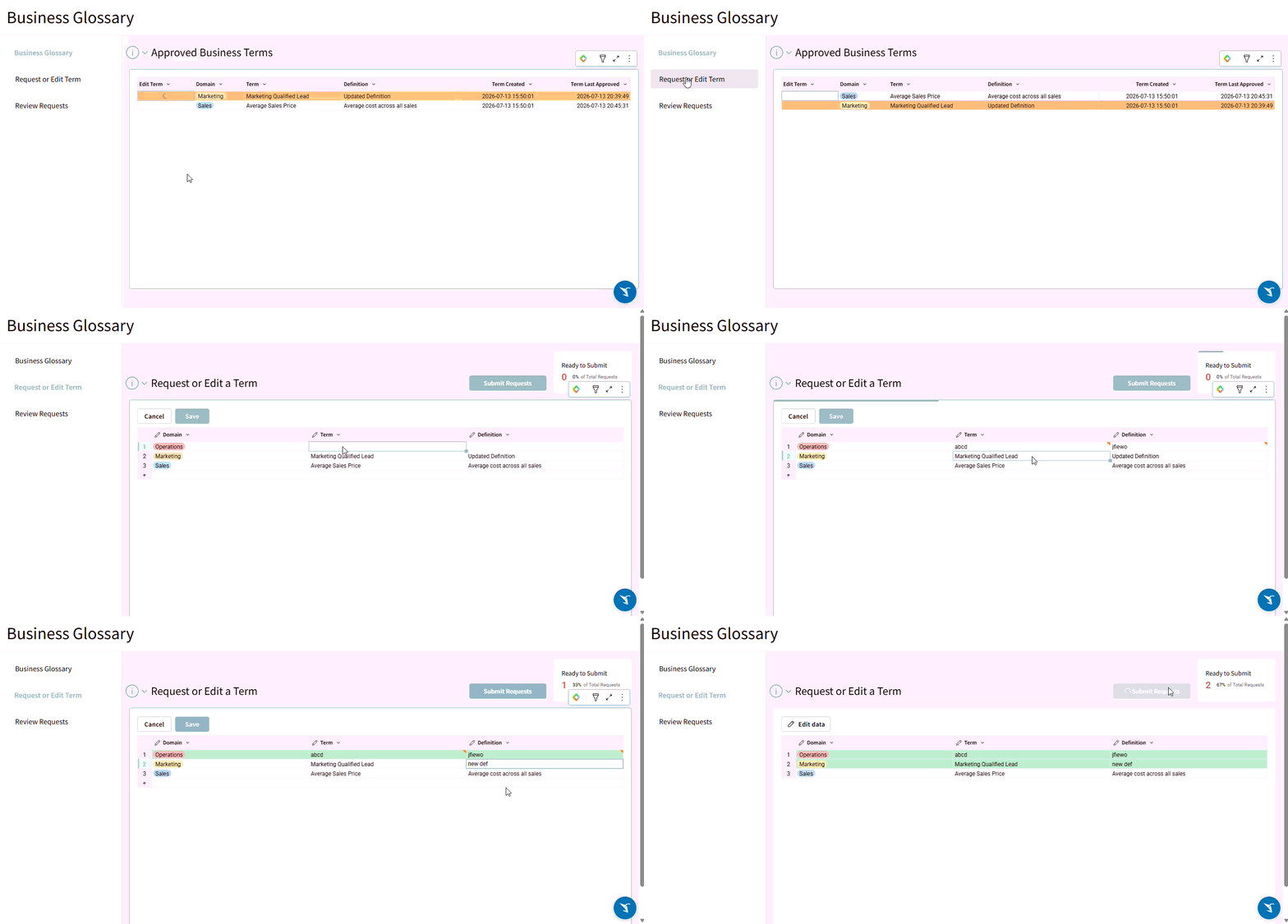
The goal of this challenge is to create a Business Glossary application. You should have 3 visible pages:
- Business Glossary: A table that exposes only the most recently approved version of all terms. Users may select terms to edit here.
- Request or Edit a Term: An empty input table that allows users to submit requests in a tabular format
- Review Requests: A linked input table that allows users to add review comments, and select rows to approve or decline
Because the exposed input tables likely will need to be filtered for security (in a real world solution), I like to utilize working input tables for user inputs and make users submit their updates with a button click. This allows us to track an activity history while still giving users tabular input and not allowing them to see any hidden filters.
In this application, a single term can have multiple requests, each of which can have multiple steps. To track which steps belong to each request and term, we will have multiple IDs associated with each row:
- Request Step ID: The System Row ID direct from Sigma
- Request ID: The Request Step ID when that request was submitted
- Term ID: The first Request ID for a Term
Hidden Data Page
Behind the Scenes (BTS) History Table (Hidden)
Create an empty input table that allows for the following inputs:
- Domain (Single-Select): Choose any domains/departments you may want in your organization
- Term (Text)
- Definition (Text)
- Review Comments (Text)
- Status (Single-Select): For our purposes, we want to have “In Review”
- Request ID Input (Text)
- Term ID Input (Text)
Add System Columns for:
- Row ID: Rename to Request Step ID
- Created At: Rename to Activity Timestamp
- Created By: Rename to Activity By. Feel free to convert the Sigma Public email to a more user friendly name
There are portions of the workflow where we may not have access to the Row ID yet. To get those mapped appropriately, you’ll want Calculation columns:
- Request ID: If Request ID Input is null, take the Request Step ID
- Term ID: If Term ID Input is null, take the Request Step ID
Behind the Scenes Grouped
Add 2 grouping levels to find specific fields and make calculations associated with a row’s Term and Request:
- Term ID
- Term Created Timestamp: First Activity Timestamp
- Term Last Approved Timestamp: Last Activity Timestamp where Status = “Approved”
- Term Has Pending Updates (T/F): Term has an open request
- Request ID
- Request Created Timestamp: First Activity Timestamp
- Request Approved Timestamp: Last Activity Timestamp where Status = “Approved”
- Request Latest Activity Timestamp: Last Activity Timestamp
- Request Status: Status of Latest Activity. If the request was approved, but there is a more recent approval, the status should be Retired
- Ungrouped (Request Step granularity)
- Calculate several logical columns:
- Is Request’s Latest Activity
- Is Latest Approved
- Is Open Review: The Request and row are In Review and after the last approval timestamp
- Hint: Be sure to handle nulls when comparing the Term’s Latest Approval with the row’s Activity Timestamp
- Calculate several logical columns:
Behind the Scenes without Declines/Retired
Because all of my direct parents of visible tables need to start with similar filters, I like to add one intermediary table between my grouped table and parent tables. For our purposes today, this isn’t directly necessary (if you’ve created your logical columns correctly), but you may find it useful in the real world.
Filter to show only:
- a Request’s Latest Activity
- Statuses that are NOT Declined or Retired
Parent Tables
Using that intermediary table as a (grand)parent, create two table to use as the parent tables for our Business Glossary and Review Linked Input Table:
- Business Glossary Parent: Filter to Is Latest Approved
- Review Parent: Filter to Is Open Review
Business Glossary (Visible Page)
Your business glossary page should include:
Glossary Table
Expose informative columns from our Business Glossary Parent:
- Domain
- Term
- Definition
- Term Created
- Term Last Approved
Also create a column that allows users to add the term to the Request Input table:
- If the term is already being edited, show an empty string. If it is not, show a ✏️.
- Hint: You may find it helpful to create a hidden calculated logical column that determines if the Term ID is found in the Request Empty Input Table. We will use this same logic in our action
UX/UI features
- When clicking on a ✏️, Insert Row(s) Into the Request Input Table from the Business Glossary where the selected Request Step ID = the Business Glossary’s Request Step ID
- Insert Domain, Term, and Definition into 3 visible columns. Insert them again into 3 hidden columns that you will use to track if changes were made
- Include a descriptive page title
- Include a popover with instruction for how to use the page
- Note: You can now utilize a icon as your popover’s text to save real estate
Request or Edit Term (Visible Page)
We want to allow users to request multiple terms at once. We can do this with a working empty input table and a button that formally submits these inputs to our BTS History table. Your request page should include:
Request Empty Input Table
This table should have several inputs:
- Domain (Single-Select): Utilize the same values as in our BTS history input table.
- Term (Text)
- Definition (Text)
- Original versions of these columns, used to track if changes were made:
- Original Domain (Single-Select)
- Original Term (Text)
- Original Definition (Text)
- Term ID Input
You will also need some System Columns:
- Row ID: Rename to Request ID
- Created At: Rename to Activity Timestamp
- Created By: Rename to Activity By. If you are converting in the BTS History table, do so here as well.
Finally, add some calculations:
- Term ID: If Term ID Input is null, take the Request Step ID
- Has Changes (Logical): Compare the hidden Original columns with the new Input columns. Be sure to take care of nulls
- Ready to Submit (Logical): Check that our 3 user inputs have value and [Has Changes]
To the end user, you should only display:
- Domain
- Term
- Definition
Highlight any rows that are Ready to Submit
UX/UI features
This page should include:
- A button for user’s to Submit Requests:
- On click:
- Insert Row(s) Into the BTS History Table from Request Terms Input Table where rows are marked as Ready to Submit
- Delete Row(s) in the Request Terms Input Table where rows are marked as Ready to Submit.
- On click:
- An indication of the number of rows that a Ready to Submit vs Total Rows
- You could use a KPI
- You could also use dynamic text on the button
- What other ways might work here?
- A descriptive page title
- A popover with instruction for how to use the page
Review Terms (Visible Page)
We want users to be able able to review many requests at once. Your review page should include:
Review Linked Input Table
This should be a Linked Input Table that is a child of our Review Parent Table. The Primary Key should be the Request ID.
Display these source columns:
- Domain
- Term
- Definition
- Requested At
- Requested By
Allow for these input columns:
- Review Comments (Text)
- A column for users to mark each request as Approved or Declined
- This could be:
- A Single-Select Column with options of “Approve” and “Decline” OR
- A checkbox column where users can Mark for Approval paired with a checkbox control that allows users to Decline anything unmarked when it is unchecked/switched off. This is the fastest for end users:
- When the control is checked, rows marked for approval will be inserted with Approved and unmarked rows will be inserted with Declined
- When the control is unchecked, only rows marked for approval will be inserted with Approved. Unmarked rows will remain as Open Reviews
- This could be:
If you utilize the bulk Decline control method, I recommend creating a logical column that determines which rows are Marked for Review.
UX/UI features
- A button for user’s to Submit Reviews:
- On click:
- Insert Row(s) Into the BTS History Table from Request Terms Input Table where rows are marked as Marked for Review (either your single-select column is not null or the logical calculated column = True). Be sure to mark the right Status!
- On click:
- An indication of the number of rows that are being Approved vs Declined
- You could use a KPI
- You could also use dynamic text on the button
- What other ways might work here?
- A descriptive page title
- A popover with instruction for how to use the page
Finishing Touches
- Arrange your elements into a cohesive app, adding any extra elements you like:
- Header with a title
- Sidebar with a Navigation element
- Hide the bottom tabs when you use a nav bar!
- Containers to group things together
- Use a custom Workbook Theme to give your app a personal flair
- Set your input tables to editable in Publish Mode
Tips
- Because editing in Publish mode requires users to click Edit Data to edit, I like to add Actions that allow users to check & uncheck the Mark to Approve checkbox without clicking Edit Data.
Dataset
We’re only using inputs for this challenge
Share
After you finish your workout, share on LinkedIn, Sigma’s Community page, (or Twitter) using the hashtags #WOW2026 and #Sigma, and tag Ashley Bennett, Stanley Gai, Jessica Batten, Eric Heidbreder, and Carter Voekel!
Also, make sure to fill out the Submission Tracker so that we can count you as a participant this week to track our participation throughout the year.