
Introduction
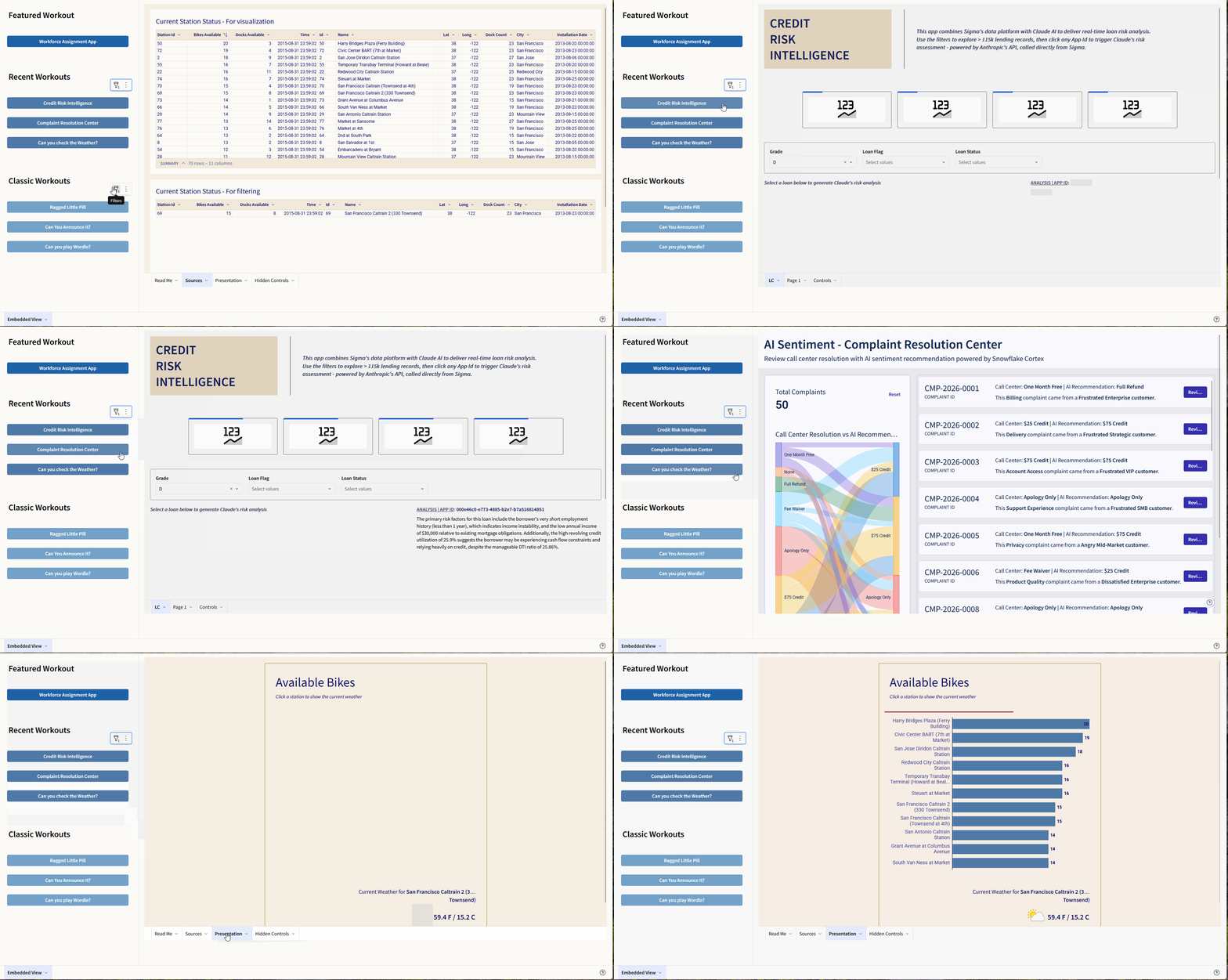
Awhile ago, we were given the lovely fixed header option, which looks great and has helped to make more maintainable custom navigation in Sigma possible, but this week, we’re playing around with a beta feature – the fixed Sidebar.
This functionality, combined with repeated containers and embedded UI elements, makes for some interesting design possibilities. In this week’s challenge, we’re combining Sidebars, Repeating Containers, Dynamic Text, and Embedded UI elements to create a dynamic navigation that can be updated via a table, rather than from the UI. Let’s get to it!
Need access to Sigma?
Note: You will only have view access to WOW Workbooks, Folders, and Workspaces, not edit access. Please create your WOW Workbooks under “My Documents.” We suggest creating a folder to organize all your workbooks.
Requirements
- Add a new table element into a page called ‘Source’
- Workout Wednesday / 2026 / 2026W20 – Can we have a quick Sidebar? / 2026W20 – Data Model – Can we have a quick Sidebar? / WoW Documents and URLs
- Create a Control to handle dynamic embed links
- Add a new control, label it ‘Document URL’
- Change the Control ID to Document-URL-Control
- Leave the control on the ‘Source’ tab.
- Create your sidebar
- Click on the blank space in the background of your workbook
- At the far right context menu, go to ‘Workbook Settings’
- Go to Workbook Navigation and select ‘Page sidebar’
- Add three repeated containers to hold your Workbook Selections (you might try duplicating the first one to save time)
- Go to ‘Layout’ and Repeated Container
- Drag the Repeated Container into the sidebar, set the source as the ‘WoW Documents and URLs in your “Source” tab, not the one from the data model directly!
- Drag a button into the repeated container and select it, so you can see its properties
- In the text of the button, press the ‘=’ sign to open up the dynamic input menu
- Select Source Column as your input type, and select ‘Clean Document Name’ as your field
- This is where you might duplicate the containers 🙂
- Set each container to have a different filter to specify the workbooks to display
- Container 1 should filter on Promote to Featured = True
- Container 2 should filter to the Top 3 Document Created at Utc (hint, use a Top N filter type
- Expand it to fit 3 buttons
- Container 3 should filter to Promote to Classics = True
- Expand it to fit 3 buttons
- Add text boxes to act as headers to organize your buttons: Featured Workout, Recent Workouts, Classic Workouts
- Get your buttons to *do* something!
- Select one of the buttons inside the repeated container – be careful not to select the repeated container itself
- Go to Actions
- Create a new action where the action is ‘Set control value’
- Update the Document URL control in your Source tab
- Set value as Column Document Url
- Repeat these steps for the other repeating containers, and note that you only need to apply it to a single button in each of the repeating containers
- To check that this step worked, click a button and watch the Document URL control update with the workbook URL
- Bring it all together in an embedded view
- On a new tab, add a UI – Embed element
- In the properties, set the embed URL to a dynamic reference (press ‘=’), and reference the Document URL control
- After the dynamic reference, add the text ?:embed=true
- The full preview URL should look something like this: https://app.sigmacomputing.com/workoutwednesday/workbook/3wA6qsfsPR5cUt2MyCi1rP?:embed=true
- Test it out and enjoy the clean sidebar!
Dataset
Workout Wednesday > 2026 > 2026W20 – Can we have a quick Sidebar? > 2026W20 – Data Model – Can we have a quick Sidebar? > WoW Documents and URL
Share
After you finish your workout, share on LinkedIn, Sigma’s Community page, (or Twitter) using the hashtags #WOW2026 and #SigmaComputing, and tag Ashley Bennett, Eric Heidbreder, Stanley Gai, and Carter Voekel!
Create an interactive, sharable version of your solution here.
Also, make sure to fill out the Submission Tracker so that we can count you as a participant this week to track our participation throughout the year.
Solution
Coming Soon!