
Introduction
Sigma has been adding functionality that has taken the app from a fantastic BI solution to an outstanding Application building tool. One of the features that helps with that is the introduction of API Actions. With API Actions, you can retrieve data from outside sources and send data out to other sources.
The challenge today is not going to be about creating API action endpoints (because you have to have permissions for those), but about building a simple API action workflow that demonstrates the ability to seamlessly call real time data and display it in a workbook for users.
For more detail on how API actions can be used (if you’re not excited about them yet, you will be!). Check out this blog post from Sigma
Need access to Sigma?
Note: You will only have view access to WOW Workbooks, Folders, and Workspaces, not edit access. Please create your WOW Workbooks under “My Documents.” We suggest creating a folder to organize all your workbooks.
Requirements
- Add a new table to a ‘Sources’ page
- Workspaces > Workout Wednesday > 2026 > 2026W16 – Can you check the weather? > 2026W16 – Bike Station Status
- I call this one ‘Current Station Status – for visualization
- Create a child table called ‘Current Station Status – for filtering’
- Add visualizations on a page called ‘Presentation’
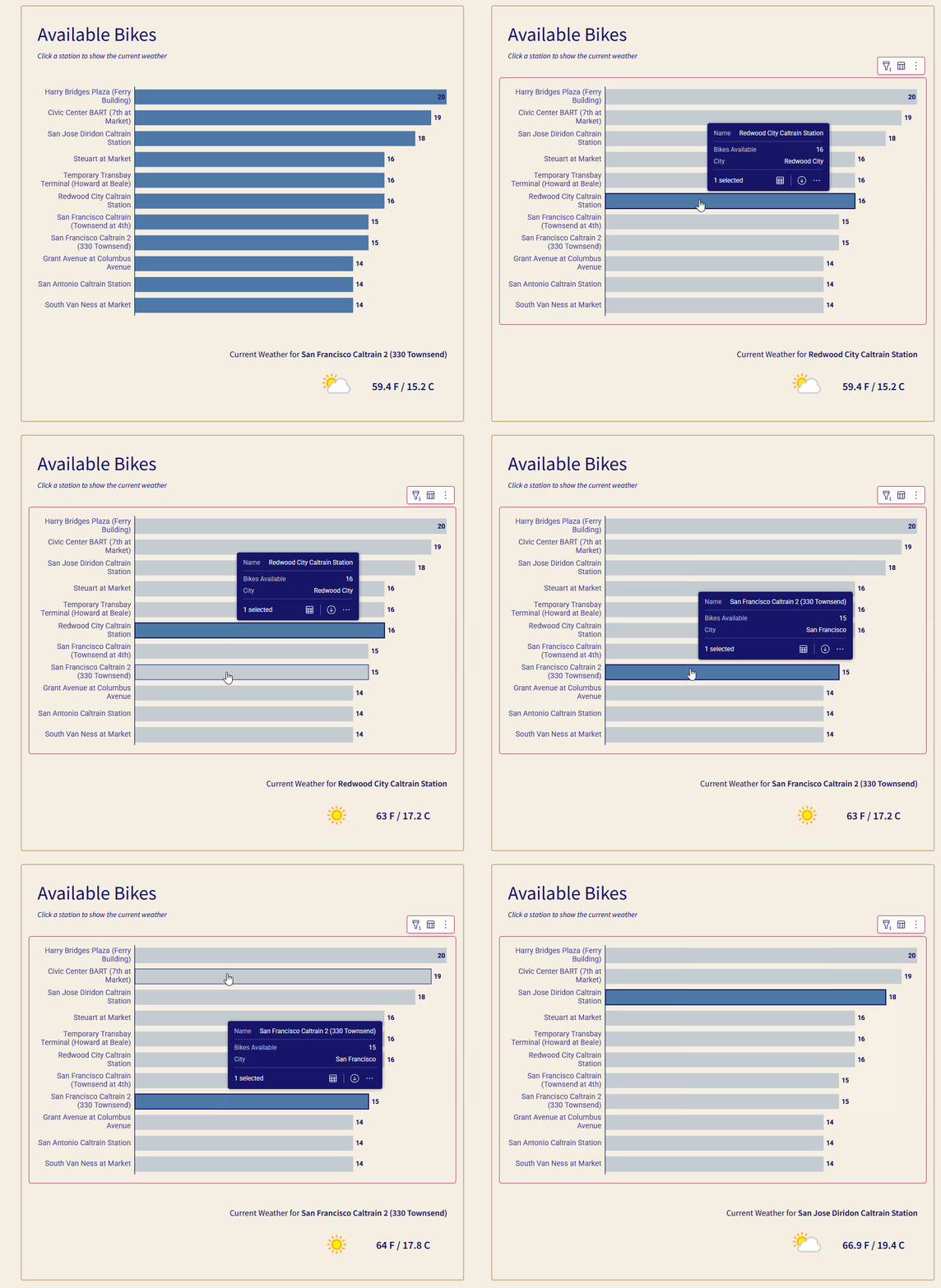
- Add a barchart showing the top 10 stations by bikes available and station name
- Hint: Use a Top N filter on Bikes Available
- Add the City to the tooltip
- Add Hidden Controls on a new page
- Station Name Selection
- Update the Target to filter the Name field in Current Station Status – for filtering
- Temp (F)
- Temp ( C)
- Condition Icon URL
- Note: I like to change the control IDs to be more explicit, because we’re going to reference them in actions later
- Station Name Selection
- Add the actions needed to power our weather-checking API call
- Select the bar chart you created on the ‘Presentation’ tab
- Go to the ‘Actions’ tab in the top right of your screen
- Create 5 actions under the ‘On Select’ action sequence
- Set control value
- Update control – Station Name Selection
- Set Value as Column Name
- Set control selection to Replace Previous Selection
- Call API
- Get forecast
- Send as q | Column | City
- Set control value
- Temp (F) as Action variable Temp (F)
- Set control value
- Temp (C ) as Action variable Temp (C )
- Set control value
- Condition Icon URL as Action variable Condition Icon URL
- Set control value
- Present the outputs
- Using UI -> Text elements, create the following blocks
- Current Weather for Current Station Status – for filtering/Name
- Get the values of your Temp (F) and Temp ( C) controls alongside their labels (F and C)
- Add an Image element to get the weather image
- Set the URL to your Condition Icon URL
- Using UI -> Text elements, create the following blocks
Dataset
Workspaces > Workout Wednesday > 2026 > 2026W16 – Can you check the weather? > 2026W16 – Bike Station Status
Share
After you finish your workout, share on LinkedIn, Sigma’s Community page, (or Twitter) using the hashtags #WOW2026 and #SigmaComputing, and tag Ashley Bennett, Eric Heidbreder, Stanley Gai, and Carter Voekel!
Create an interactive, sharable version of your solution here.
Also, make sure to fill out the Submission Tracker so that we can count you as a participant this week to track our participation throughout the year.
Solution
Coming Soon!