
Introduction
I’ll admit that I’ve been hesitant to leverage AI inside of Sigma for certain projects, especially when it came to some of the more advanced builds involving actions, controls, and conditional formatting, but I always throw a complex build at it when new updates come out. And with the Sigma Assistant becoming GA and boasting a code-first architecture, I was excited to see what it would do with a bowling game pin-tracker.
I’ve had this idea for awhile and never wanted to handle all the actions and routing, and this is not going to be a challenge to encourage you to go out and replicate steps 10 times in a row (one for each pin), it’s to encourage you to work smarter using the Sigma Assistant.
When paired with a knowledge of what you want to build, and some concrete examples, the Assistant has proven extremely impressive, knocking out my bowling pin selector in 3 steps.
The full app is fun, but this workout is specifically to share some tips on how to build using the Sigma Assistant, which you can access via public.sigmacomputing.com – let’s get rolling!
Need access to Sigma?
Note: You will only have view access to WOW Workbooks, Folders, and Workspaces, not edit access. Please create your WOW Workbooks under “My Documents.” We suggest creating a folder to organize all your workbooks.
Requirements
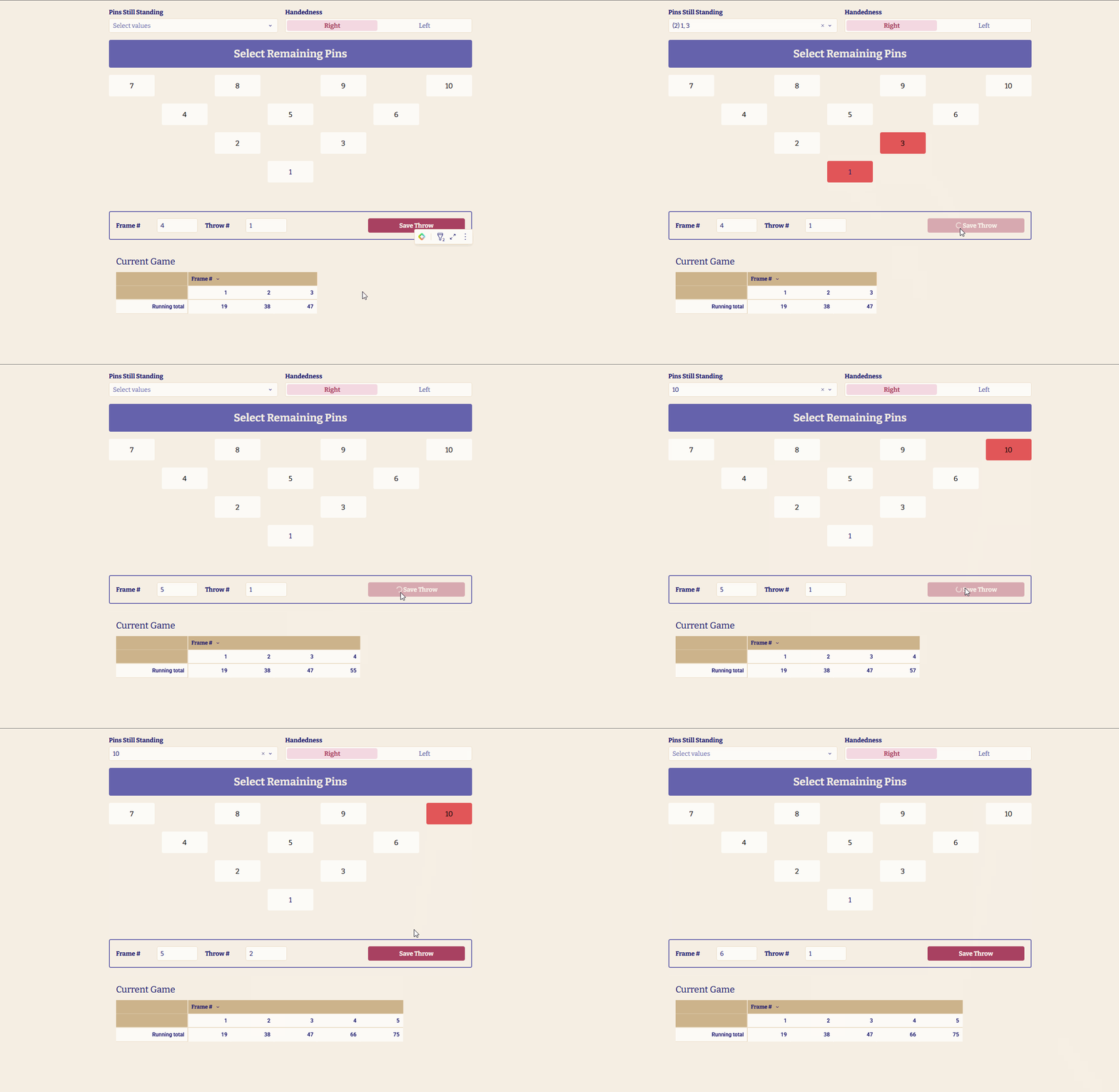
How the Pin-Toggling Grid Works
Each pin number (1–10) is actually two layered elements, not one:
- A Container (e.g., Container 1 holds pin “1”) that acts as the colored box.
- A Button inside that container, showing the pin number as its label.
1. The Hidden State: Controls
The page uses several controls that manage the state of the pins:
- Pins Still Standing — a ListControl (variable:
pins-left) that stores which pins are currently “down” (selected) - t1-pc — a NumberControl that tracks pins converted on throw 1 of the 10th frame
- Current Bowler Id — a TextControl
- Game ID — a TextControl
Pins Still Standing is the single source of truth for which pins are currently down.
2. Each Pin Button: Click Handler
Every numbered button (1–10) has a click action that toggles the pin on and off:
- Event trigger: On click
- Action type: If/Else block
- Condition:
ArrayContains([pins-left], N)(where N is the pin number)
If true (pin already in the list):
- Action: Set control value
- Control: Pins Still Standing
- Value:
N(the pin number) - Selection mode: Remove from existing selection
Else (pin not yet in the list):
- Action: Set control value
- Control: Pins Still Standing
- Value:
N(the pin number) - Selection mode: Add to existing selection
This add/remove pattern lets clicking a pin toggle it in and out of Pins Still Standing without needing a separate flag.
3. The Red Highlight: Container Conditional Format
The red color isn’t applied to the button itself — it’s a conditional format on the parent Container. This makes the container turn red whenever its pin number is in Pins Still Standing.
- Go to the Container’s Conditional format settings
- Condition:
ArrayContains([pins-left], N) - Format: Set Background color to
#E15658(red)
When the condition is true, the container’s background turns red — creating the visual effect of the pin being selected.
4. “Save Throw”: Multi-Branch Bowling Logic
The Save Throw button contains 8 separate action sequences. Each sequence has a condition that determines when it fires — only the sequence whose condition is true executes.
| Sequence Name | Condition | Actions |
|---|---|---|
| Strike, frames 1–9 | [frame-num] < 10 AND [throw-num] = 1 AND ArrayLength([pins-left]) = 0 |
Increment Frame # by 1 Set Throw # to 1 Clear Pins Still Standing |
| Non-strike throw 1, frames 1–9 | [frame-num] 0 |
Set Throw # to 2 Clear Pins Still Standing |
| Throw 2, frames 1–9 | [frame-num] < 10 AND [throw-num] = 2 |
Increment Frame # by 1 Set Throw # to 1 Clear Pins Still Standing |
| 10th frame, throw 1 | [frame-num] = 10 AND [throw-num] = 1 |
Set t1-pc to ArrayLength([pins-left])Set Throw # to 2 Clear Pins Still Standing |
| 10th frame, throw 2→3 | [frame-num] = 10 AND [throw-num] = 2 AND ([t1-pc] = 0 OR ArrayLength([pins-left]) = 0) |
Set Throw # to 3 Clear Pins Still Standing |
| 10th frame, throw 2 game over | [frame-num] = 10 AND [throw-num] = 2 AND [t1-pc] > 0 AND ArrayLength([pins-left]) > 0 |
Set Frame # to 1 Set Throw # to 1 Set Game ID to Text(Now())Clear Pins Still Standing Execute “Record throw” sequence |
| 10th frame, throw 3 game over | [frame-num] = 10 AND [throw-num] = 3 |
Set Frame # to 1 Set Throw # to 1 Set Game ID to Text(Now())Clear Pins Still Standing Execute “Record throw” sequence |
| Record throw | Always fires (no condition) | Insert row into Throws table with the mapping below |
Record throw sequence: This always runs and inserts a new row into the Throws input table with the following mappings:
- Game ID ← value from Game ID control
- Date ← formula:
Date(Now()) - Frame # ← value from Frame # control
- Throw # ← value from Throw # control
- Pins left ← formula:
ArrayJoin([pins-left], ",") - Standing ← formula:
ArrayLength([pins-left]) - Handedness ← formula:
Text([handedness])
Step-by-Step Rebuild Instructions
Create Throws Input Table
Add an InputTable named “Throws” with the following columns:
- Game ID (Text)
- Date (Date)
- Frame # (Number)
- Throw # (Number)
- Pins left (Text)
- Standing (Number)
- Handedness (Text)
Add Hidden State Controls
Create these controls (ideally on a utility page or hidden area):
- ListControl named “Pins Still Standing” (variable:
pins-left) - NumberControl named “t1-pc”
- TextControl named “Game ID”
- TextControl named “Current Bowler Id”
Create Pin Containers and Buttons (×10)
Recommendation: Create the first pin manually, then use the Sigma Assistant to replicate it. After setting up Container 1 with its button and formatting:
“Can you replicate the formatting in @Container 1 nine more times, one for each number 2-10?”
For each pin number 1–10:
- Add a Container
- Inside it, add a Button with the label set to the pin number
Configure the Button:
- Event: On click
- Add Action: If/Else block
- Condition:
ArrayContains([pins-left], N)(replace N with the pin number) - If true branch: Set control value
- Control: Pins Still Standing
- Value:
N - Selection mode: Remove from existing selection
- Else branch: Set control value
- Control: Pins Still Standing
- Value:
N - Selection mode: Add to existing selection
Configure the Container:
- Go to Conditional format
- Add a condition:
ArrayContains([pins-left], N) - When true, set Background color to
#E15658(red)
Add Game State Controls
- NumberControl named “Frame #” (variable:
frame-num) - NumberControl named “Throw #” (variable:
throw-num) - TextControl named “Handedness” (variable:
handedness)
Create Save Throw Button and Actions
Recommendation: Use the Sigma Assistant to generate the complex action logic. Add a Button named “Save Throw”, then prompt:
“Can you please create actions that will store the remaining pins for the current bowling throw, then advance to the next throw or frame, depending on the outcome of the throw?”
The assistant should generate the 7 conditioned sequences plus the “Record throw” sequence described below. If you need to manually create them, follow these steps:
Add a Button named “Save Throw”.
Add 8 action sequences to its On click event (in order):
- Strike, frames 1–9
- Set condition:
[frame-num] < 10 AND [throw-num] = 1 AND ArrayLength([pins-left]) = 0 - Increment Frame # by 1
- Set Throw # to static value 1
- Clear Pins Still Standing
- Set condition:
- Non-strike throw 1, frames 1–9
- Set condition:
[frame-num] 0 - Set Throw # to static value 2
- Clear Pins Still Standing
- Set condition:
- Throw 2, frames 1–9
- Set condition:
[frame-num] < 10 AND [throw-num] = 2 - Increment Frame # by 1
- Set Throw # to static value 1
- Clear Pins Still Standing
- Set condition:
- 10th frame, throw 1
- Set condition:
[frame-num] = 10 AND [throw-num] = 1 - Set t1-pc to formula
ArrayLength([pins-left]) - Set Throw # to static value 2
- Clear Pins Still Standing
- Set condition:
- 10th frame, throw 2→3
- Set condition:
[frame-num] = 10 AND [throw-num] = 2 AND ([t1-pc] = 0 OR ArrayLength([pins-left]) = 0) - Set Throw # to static value 3
- Clear Pins Still Standing
- Set condition:
- 10th frame, throw 2 game over
- Set condition:
[frame-num] = 10 AND [throw-num] = 2 AND [t1-pc] > 0 AND ArrayLength([pins-left]) > 0 - Set Frame # to static value 1
- Set Throw # to static value 1
- Set Game ID to formula
Text(Now()) - Clear Pins Still Standing
- Set condition:
- 10th frame, throw 3 game over
- Set condition:
[frame-num] = 10 AND [throw-num] = 3 - Set Frame # to static value 1
- Set Throw # to static value 1
- Set Game ID to formula
Text(Now()) - Clear Pins Still Standing
- Set condition:
- Record throw (no condition — always fires)
- Action: Insert row
- Table: Throws (InputTable)
- Map columns as listed in section 4 above
Dataset
None, we create it in the app!
Share
After you finish your workout, share on LinkedIn, Sigma’s Community page, (or Twitter) using the hashtags #WOW2026 and #SigmaComputing, and tag Ashley Bennett, Eric Heidbreder, Stanley Gai, and Carter Voekel!
Create an interactive, sharable version of your solution here.
Also, make sure to fill out the Submission Tracker so that we can count you as a participant this week to track our participation throughout the year.
Solution
Coming Soon!