
Introduction
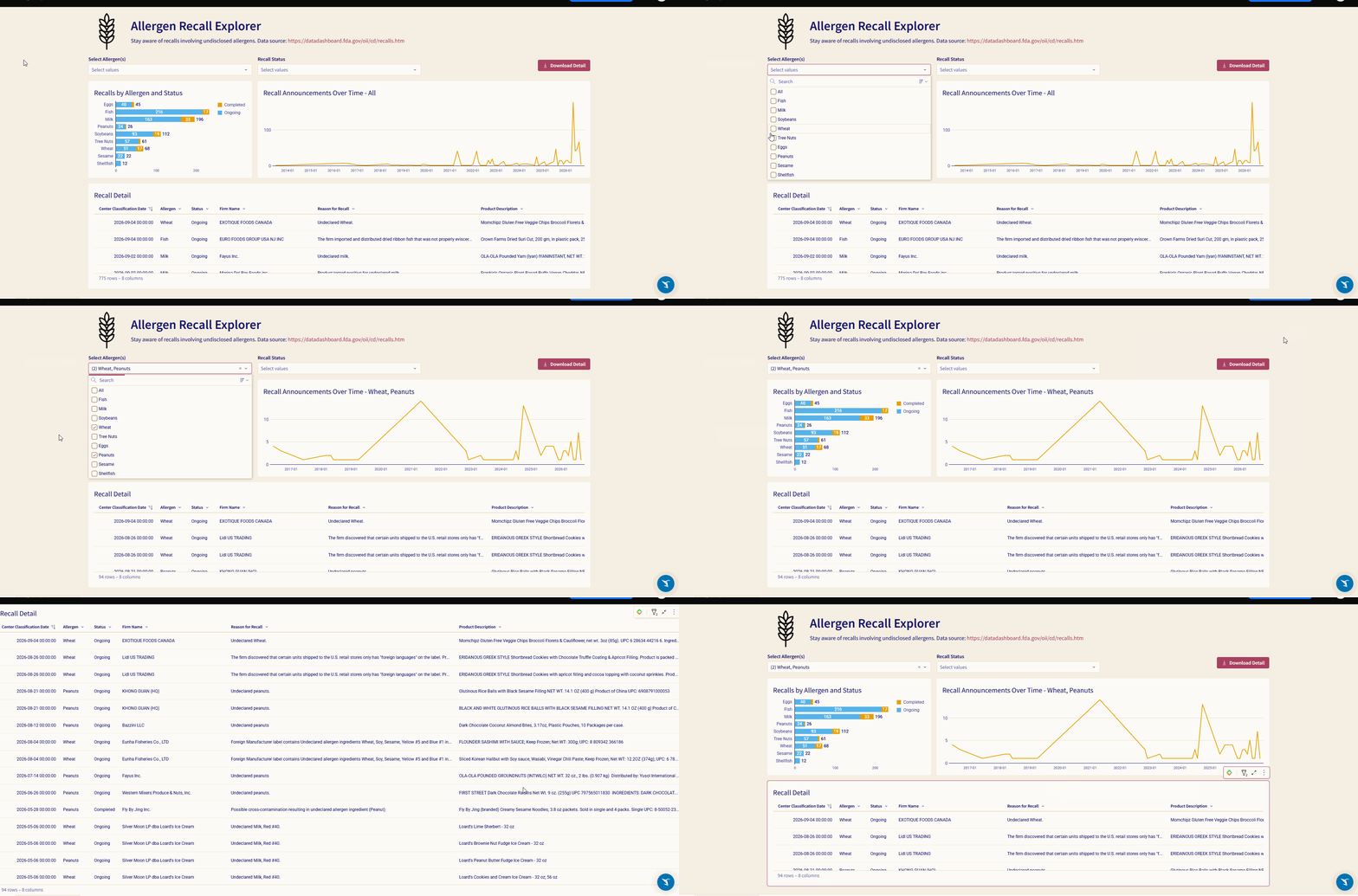
My partner has a food allergy, which makes me very aware of food labels and products, but what happens when a factory has cross contamination or undisclosed allergens? I turned to the FDA website to see if I could glean some helpful information, and after some cleaning and Unnesting, we found our way to a clean app for investigating recalls related to undisclosed allergens!
Need access to Sigma?
Note: You will only have view access to WOW Workbooks, Folders, and Workspaces, not edit access. Please create your WOW Workbooks under “My Documents.” We suggest creating a folder to organize all your workbooks.
Requirements
- Download the CSV data from https://drive.google.com/file/d/1Huwip0jIMZS2hhx8h5VwJ3bwR6U37HBB/view?usp=sharing
- Rename your current page to ‘Source’ and create a new table element using the CSV as the source
- Name the element ‘Source – Recall Fact Current Rows’
- Rename fields to be friendly names (event_id becomes Event ID, for example)
- Filter the Product Type to ‘Food/Cosmetics’ and exclude null from the Allergens field
- Create a Child Element of the table and call it ‘Transform – Recall Fact (Allergen Convert to Array)‘
- Create a new calculated field called ‘Allergen Array‘, set the formula to SplitToArray([Source – Recall Fact Current Rows/Allergens], “, “)
- Create one more child element from the Transform table. Call this one ‘Transform – Recall Fact (Unnest of Allergen Array)‘
- After creating the table, go to ‘Data Source’ and select the dropdown next to the table name and select “Unnest”
- Unnest the Allergen Array into a column called Allergen
- Apply changes, then convert the Allergen field to Text
- Build out your Exploration tab
- Create a bar chart that shows the Count of Recalls by Allergen, colored by Status
- Create a line chart that shows the Count of Recalls over time, using the Center Classification Date as the X axis
- Create a table that shows details for export (Name it Recall Detail), recommend including the Center Classification Date, Allergen, Status, Firm Name, Reason for Recall, Distribution Pattern, Recall Details URL, and Product Description.
- Add a button, and set it to button type = Text and Icon. Set the text to ‘Download Detail’ and give it a download icon
- Add an action that downloads an Excel of the Recall Detail table when you click the button
- Add controls to filter down the Line Chart and Recall detail table, *do not filter the bar chart*. Recommend using Allergens and Status as controls
- Add some color and images
- Update the workbook theme to change the default colors
Dataset
Share
After you finish your workout, share on LinkedIn, Sigma’s Community page, (or Twitter) using the hashtags #WOW2026 and #SigmaComputing, and tag Ashley Bennett, Eric Heidbreder, Stanley Gai, and Carter Voekel!
Create an interactive, sharable version of your solution here.
Also, make sure to fill out the Submission Tracker so that we can count you as a participant this week to track our participation throughout the year.
Solution
Coming Soon!