
Introduction
Some of the most important tasks in a BI implementation are not pretty or fun. One of the tasks that comes up any time I’m pulling in data from sources is how to standardize fields across multiple systems. This is especially tricky when the fields may have been manually input at some point in the chain.
This problem sounds simple, but breaks down at scale, and Sigma’s new AI Columns feature has made it easier for users with Snowflake or Databricks connections to handle this use case elegantly, with the ability to update fields and cache them back to your database.
I highly recommend this as a first step toward resolving standardization problems. I like Sigma’s implementation of this, because it caches the results, and updates only new records. I’m very skeptical of having AI in the chain when dealing with standardization without someone checking the work, so keep that in mind, but also have fun exploring AI Columns!
Need access to Sigma?
Note: You will only have view access to WOW Workbooks, Folders, and Workspaces, not edit access. Please create your WOW Workbooks under “My Documents.” We suggest creating a folder to organize all your workbooks.
Requirements
- Data Sources
- The data sources are all made up this time
- Creating your input tables
- Rename your current page ‘Mapping’
- Create two input tables (this would also work with one source table that contains fund names, and another table that has input tables)
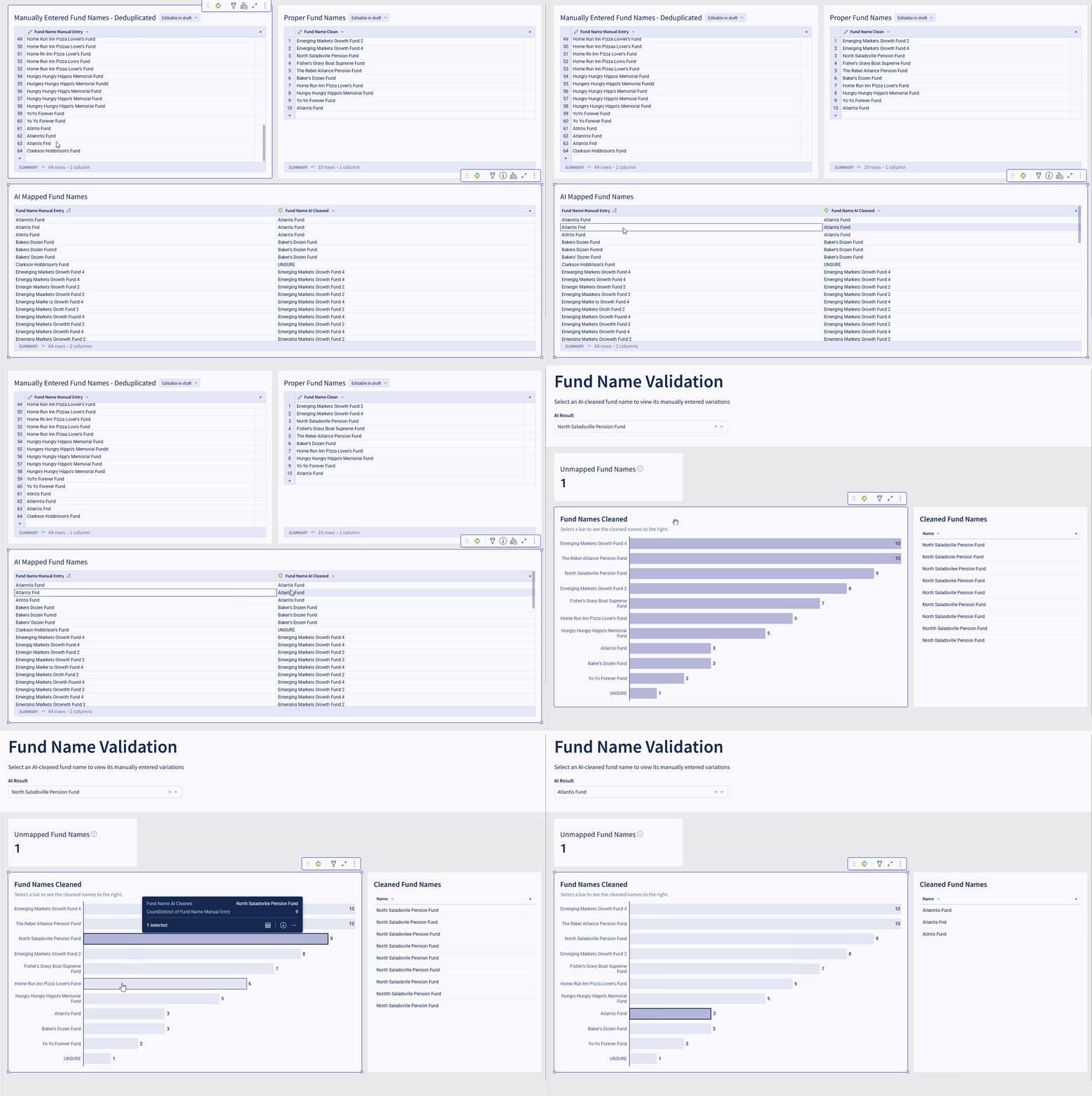
- Proper Fund Names
- Manually Entered Fund Names – Deduplicated
- In the Proper Fund Names table, write your standardized fund names
- In the Manually Entered Fund Names – Deduplicated, go absolutely wild, spell things as incorrectly as you can
- Sprinkle on some AI magic
- Create a new table in the same page called AI Mapped Fund Names. Set the source to Manually Entered Fund Names – Deduplicated
- In the right sidebar, press the ‘+’ sign to add a new column, and select Add Column Via > AI Column
- When the modal opens, change the column name to Fund Name AI Cleaned
- Set the LLM Model to Claude 4.5 Haiku
- Update the prompt, here’s an example of what you can use:
”’
Classify [Fund Name Manual Entry] into one of the following names:
Emerging Markets Growth Fund 2
Emerging Markets Growth Fund 4
North Saladsville Pension Fund
Fisher’s Gravy Boat Supreme Fund
The Rebel Alliance Pension Fund
Baker’s Dozen Fund
Home Run Inn Pizza Lover’s Fund
Hungry Hungry Hippo’s Memorial Fund
Yo-Yo Forever Fund
Atlantis Fund
If you are unsure of which category it fits into, please fill the response with ‘UNSURE’.
Do not provide any extra commentary except for the classification.
”’
- Preview the changes to make sure the AI column results are giving you expected results, you may need to tweak your prompt, depending on your task.
- Displaying the results
- Create a page called Validation
- Update your header, as desired. I like to use the ‘Page Header’ option under Workbook Settings. Select a blank area on your page to access Workbook Settings, and go to Workbook Navigation to find Page Headers.
- Add a KPI to display the Unmapped Fund Names, this should be any funds where the cleaned name is null or ‘UNSURE’
- Add a bar chart titled Fund Names Cleaned to show the number of fund names cleaned by the AI Cleaned Name
- Add a table titled Cleaned Fund Names that shows the raw fund names
- Add a control that filters only the Cleaned Fund Names table by the AI Result, this will show us all the fund names that fall under that mapping for easier troubleshooting / validation.
- Create an action on the Fund Names Cleaned bar chart
- On select, update the AI Result control.
- Extensions
- There may be cases where you have to manually override the AI result, because the underlying fund name is too messy, or maybe has changed. This can be handled through a linked input table
- Assign Fund Owners who are tasked with managing their funds and confirming that the AI results are correct
Dataset
Workout Wednesday > 2026 > 2026W20 – Can we have a quick Sidebar? > 2026W20 – Data Model – Can we have a quick Sidebar? > WoW Documents and URL
Share
After you finish your workout, share on LinkedIn, Sigma’s Community page, (or Twitter) using the hashtags #WOW2026 and #SigmaComputing, and tag Ashley Bennett, Eric Heidbreder, Stanley Gai, and Carter Voekel!
Create an interactive, sharable version of your solution here.
Also, make sure to fill out the Submission Tracker so that we can count you as a participant this week to track our participation throughout the year.
Solution
Coming Soon!