
Introduction
After years of being on the grid, we can finally break from it (and do some other cool stuff). Using Reports, a newly released pixel-perfect document editor for Sigma, we can add elements, layer elements, and dynamically expand tables. Combining reports with Email Bursting leads to some significant time savings, if your business has any report templates that go out at regular cadences. Let’s take a look at a simple Monthly Order Report together!
Need access to Sigma?
Note: You will only have view access to WOW Workbooks, Folders, and Workspaces, not edit access. Please create your WOW Workbooks under “My Documents.” We suggest creating a folder to organize all your workbooks.
Requirements
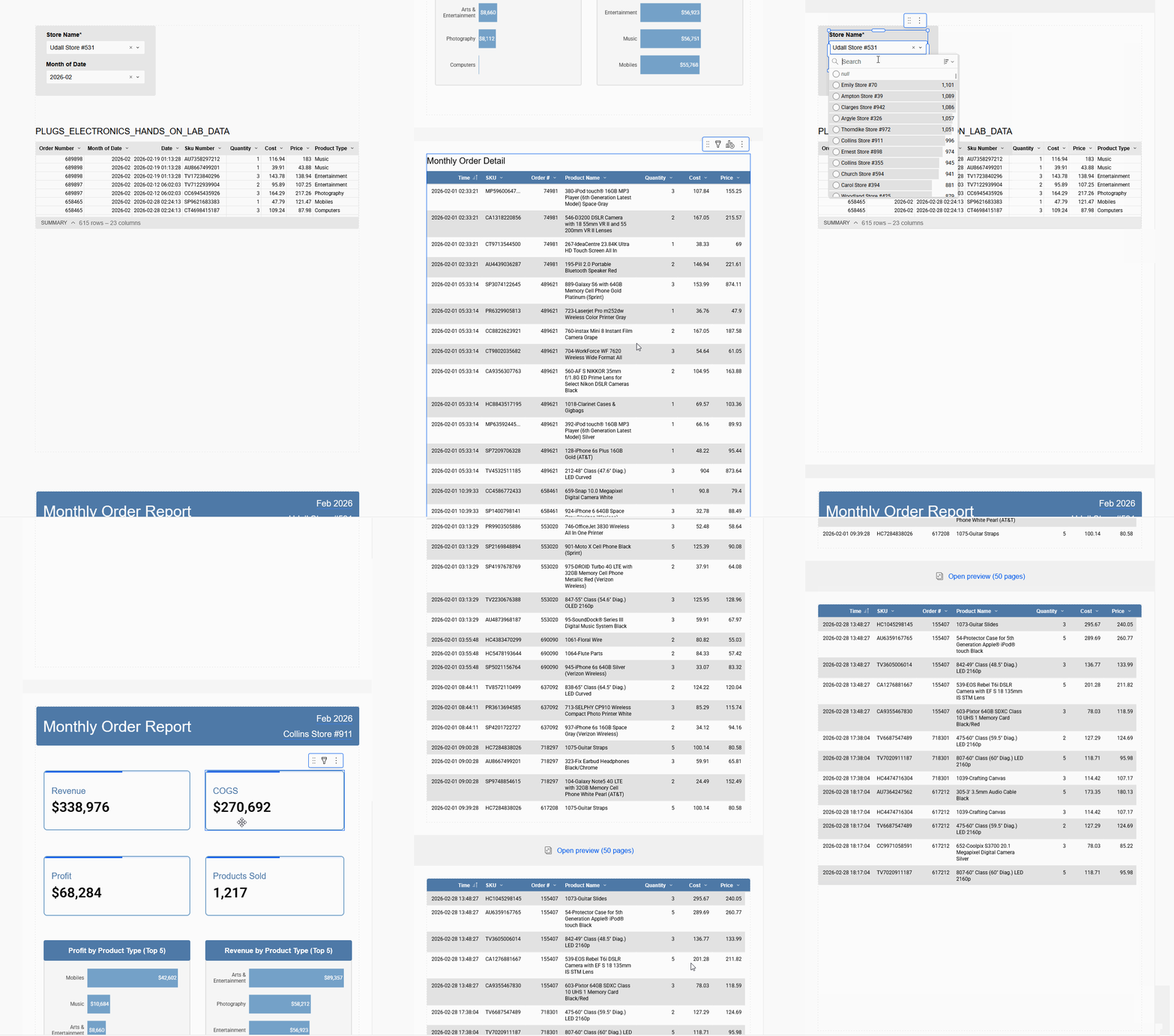
- Create a ‘Report’ – NOT a workbook
- Add a new table element
- We’re using the classic: Sigma Sample Database > RETAIL > PLUGS_ELECTRONICS > PLUGS_ELECTRONICS_HANDS_ON_LAB_DATA
- Do some gentle cleaning and preparation on the first page of your report
- Duplicate the Date field, then truncate this new field to Month (right click on the header and go to ‘Truncate Date’)
- Add controls that target the element you created in step 2
- Store Name
- Month of Date (in the properties, deselect ‘Allow multiple selection’)
- Create the front page of your report
- Add a header
- Click in the gray space outside of the report page to get to the general report settings
- Enable your Header
- Add a text box at the top that says ‘Monthly Order Report’
- Add another text box to contain the selected date and selected store name by using dynamic text (pressing the ‘equals’ sign when editing a text box)
- Add KPIs for Revenue, COGS, Profit, and Quantity
- Use the table element on Page 1, and check the ‘Metrics’ section for Revenue, COGS, and Profit
- Quantity will need to be summed when you create a KPI
- Add two bar charts
- Top 5 Product Types by Profit
- Top 5 Product Types by Revenue
- Arrange the visuals to your liking
- Make use of formatting options that remove the gridlines, zero guidelines, etc. for the bar charts
- Add a header
- Create a ‘Monthly Order Detail’
- Add a new table element to the next page
- At the bottom right of the table, click the ‘Expand’ button
- Hide the first page from view
- Now, if you’d like to export a report for every store, we can use ’email bursting’ in the scheduler and select the ‘Store Name’ control. It will create a separate export for each store!
Dataset
Sigma Sample Database > RETAIL > PLUGS_ELECTRONICS > PLUGS_ELECTRONICS_HANDS_ON_LAB_DATA
Share
After you finish your workout, share on LinkedIn, Sigma’s Community page, (or Twitter) using the hashtags #WOW2026 and #SigmaComputing, and tag Ashley Bennett, Eric Heidbreder, Stanley Gai, and Carter Voekel!
Create an interactive, sharable version of your solution here.
Also, make sure to fill out the Submission Tracker so that we can count you as a participant this week to track our participation throughout the year.
Solution
Coming Soon!